# Set up access to WhatsApp connections in Whatcrm web

1. Open the app settings.

   <figure><img src="https://1360887499-files.gitbook.io/~/files/v0/b/gitbook-x-prod.appspot.com/o/spaces%2Fb61nIKR97C88XZEX04cC%2Fuploads%2Fkz2oRIvVKoox6v6BJSGR%2Fimage%20190.png?alt=media&#x26;token=85b66f93-a56d-4577-a72a-d36b9653e2e6" alt=""><figcaption></figcaption></figure>
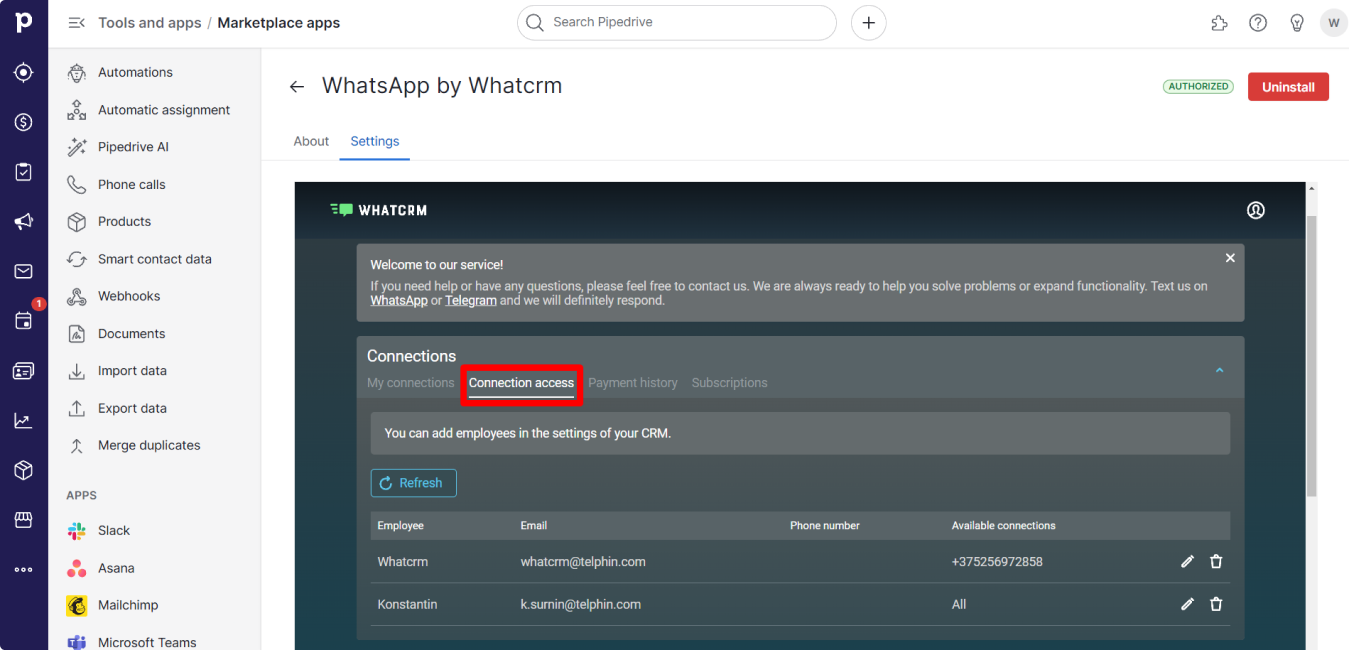
2. Navigate to the "Connection Access" section.

   <figure><img src="https://1360887499-files.gitbook.io/~/files/v0/b/gitbook-x-prod.appspot.com/o/spaces%2Fb61nIKR97C88XZEX04cC%2Fuploads%2FiRDsHEaq6huFjw9Ux2zp%2Fimage%20191.png?alt=media&#x26;token=b2f41229-fec9-4931-83c6-858d83eee8be" alt=""><figcaption></figcaption></figure>
3. Click on the pencil icon next to the desired employee.

   <figure><img src="https://1360887499-files.gitbook.io/~/files/v0/b/gitbook-x-prod.appspot.com/o/spaces%2Fb61nIKR97C88XZEX04cC%2Fuploads%2Frw0HQYVGotnyK8e68fkJ%2Fimage%20192.png?alt=media&#x26;token=924e94cc-3a03-4fb7-84ef-8fd942d37fd4" alt=""><figcaption></figcaption></figure>
4. In the "Available Connections" section, select the phone numbers that will be displayed in the messenger for this coworker.
5. Save your settings.

   <figure><img src="https://1360887499-files.gitbook.io/~/files/v0/b/gitbook-x-prod.appspot.com/o/spaces%2Fb61nIKR97C88XZEX04cC%2Fuploads%2FekvLyP40OxY7wiYt4Cze%2FGroup%20247.png?alt=media&#x26;token=912fee4b-7005-4a2c-aff3-ff765408784e" alt=""><figcaption></figcaption></figure>
6. Done! The selected connection is now available for the employee according to the updated settings.

   <figure><img src="https://1360887499-files.gitbook.io/~/files/v0/b/gitbook-x-prod.appspot.com/o/spaces%2Fb61nIKR97C88XZEX04cC%2Fuploads%2FGAqnaxfQ0Dhq5oID43bv%2Fimage%20195%20(1).png?alt=media&#x26;token=68c51d69-466f-4ef9-a905-c7919561dd85" alt=""><figcaption></figcaption></figure>
